
Difference between revisions of "Archiving Emails from Intra2net Systems"
| [unchecked revision] | [quality revision] |
(Typos) |
|||
| (21 intermediate revisions by 4 users not shown) | |||
| Line 1: | Line 1: | ||
| − | '''Please note:''' | + | '''Please note:''' This tutorial only covers the specifics of archiving an Intra2net Appliance Pro or an Intra2net Business Server (in the following referred to as Intra2net system). It is assumed that you already have a MailStore Server installation or [https://www.mailstore.com/en/products/mailstore-server/mailstore-server-trial-download/ Test installation] and are familiar with the fundamentals of MailStore Server. Please refer to the [[MailStore_Help|Manual]] or the [[Quick Start Guide]] for more information. |
| − | MailStore Server offers several ways to archive emails from | + | MailStore Server offers several ways to archive emails from an Intra2net system, which are described below. If you are not sure which archiving method best suits your company, please refer to chapter [[Choosing the Right Archiving Strategy]]. |
| − | = Archiving Individual Mailboxes = | + | == Archiving Individual Mailboxes == |
| − | + | {{Archiving Single Mailbox Preamble|Intra2net system}} | |
| + | {{Archiving Single Mailbox}} | ||
| + | {{Archiving Multiple Mailboxes|Intra2net system}} | ||
| − | = Archiving | + | == Archiving Incoming and Outgoing Emails Directly == |
| − | + | First you may want to have a closer look at the [[https://www.intra2net.com/en/support/manual/administrator/base-email-archiving.php help article]] from Intra2net describing the steps needed within Intra2net. Focus on the description of the "POP3 multidrop mailbox (MailStore)" feature and set up Intra2net properly. | |
| − | + | Now you can refer to the [[Archiving_IMAP_and_POP3_Multidrop_Mailboxes|Archiving IMAP and POP3 Multidrop Mailboxes]] article. | |
| − | |||
| − | + | Enhancing the common documentation mentioned above please use "POP3-SSL" as protocol to archive from Intra2net's mailbox. | |
| − | + | == Weblinks == | |
| + | * {{MailStore Support}} | ||
| + | * [https://www.intra2net.com Intra2net Homepage] | ||
| + | * [https://www.intra2net.com/en/support/manual/administrator/base-email-archiving.php Intra2net Manual, Archiving Chapter] | ||
| − | + | [[de:E-Mail-Archivierung von Intra2net Systemen]] | |
| − | + | [[en:Archiving Emails from Intra2net Systems]] | |
| − | |||
| − | |||
| − | |||
| − | |||
| − | |||
| − | |||
| − | |||
| − | |||
| − | |||
| − | |||
| − | |||
| − | |||
| − | |||
| − | |||
| − | |||
| − | |||
| − | |||
| − | |||
| − | |||
| − | |||
| − | [[ | ||
Latest revision as of 11:25, 27 May 2025
Please note: This tutorial only covers the specifics of archiving an Intra2net Appliance Pro or an Intra2net Business Server (in the following referred to as Intra2net system). It is assumed that you already have a MailStore Server installation or Test installation and are familiar with the fundamentals of MailStore Server. Please refer to the Manual or the Quick Start Guide for more information.
MailStore Server offers several ways to archive emails from an Intra2net system, which are described below. If you are not sure which archiving method best suits your company, please refer to chapter Choosing the Right Archiving Strategy.
Archiving Individual Mailboxes
In MailStore Server Intra2net system archiving tasks are stored in archiving profiles. By following the procedure described here you can archive a single Intra2net system mailbox for a specific MailStore user. The archiving process can be executed manually or automatically. You can find further information about executing archiving profiles in chapter Email Archiving with MailStore Basics.
- Users can only archive their own mailboxes to their personal user archive. To archive the emails of other users, you have to be logged on to MailStore Client as MailStore administrator. Only MailStore administrators can archive the emails of other users.
- In MailStore, click on Archive Email.
- To create a new archiving profile, select Other Server via IMAP/POP3 from the Email Servers list in the Create Profile area of the application window.
- A wizard opens guiding you through the setup process.
- Select Single Mailbox and click on OK.
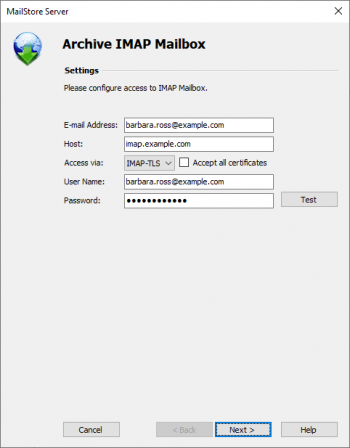
- Fill out the fields Email Address, Host, Access via, User Name and Password. The Email Address is used to label the folder that is created in the archive by this profile. Click on Test to verify the data entered.
- For the IMAP-TLS and IMAP-SSL protocols only: If the certificate provided by the remote host cannot be verified (e.g. self-signed or signed by an unknown certificate authority), enable the option Accept all certificates to allow MailStore to establish a connection. As this option leads to an insecure configuration, warnings may appear in the summary and/or the dashboard.
- Click on Next.
- Customize the list of folders to be archived (IMAP only), the filter (IMAP only) and the deletion rules. By default, no emails will be deleted from a mailbox. The timeout value only has to be adjusted as needed (e.g. with very slow servers).


- Click on Next.
- If logged on to MailStore Server as administrator, the target archive can be specified at the next step. Select the archive of the user for whom the mailbox is to be archived.
- At the last step, a name for the new archiving profile can be specified. After clicking on Finish, the archiving profile will be listed under Saved Profiles and can be run immediately, if desired.

Archiving Multiple Mailboxes in One Step
When archiving multiple mailboxes, Intra2net system works the same as any other email server. Please refer to the chapter Multiple IMAP Mailboxes (CSV File) in the help article Batch Archiving of IMAP Mailboxes in the MailStore manual.
Archiving Incoming and Outgoing Emails Directly
First you may want to have a closer look at the [help article] from Intra2net describing the steps needed within Intra2net. Focus on the description of the "POP3 multidrop mailbox (MailStore)" feature and set up Intra2net properly.
Now you can refer to the Archiving IMAP and POP3 Multidrop Mailboxes article.
Enhancing the common documentation mentioned above please use "POP3-SSL" as protocol to archive from Intra2net's mailbox.