Difference between revisions of "Moving the Archive"
| [unchecked revision] | [checked revision] |
Cstelzmann (talk | contribs) |
|||
| (47 intermediate revisions by 6 users not shown) | |||
| Line 1: | Line 1: | ||
| − | It is possible to move | + | It is possible to move a single archive store, its components or the complete MailStore Server archive to a new hard-disk, machine or network share at any time. What is required to successfully move an archive is described in the following sections. |
| − | = Moving | + | == Moving an Entire Single Archive Store == |
| + | To move an entire archive store to a different hard-disk or network share, follow the instructions below. The MailStore master database and all other archive stores remain unchanged. | ||
| − | + | When moving an archive store to a network share, the information from the article [[Using Network Attached Storage (NAS)]] are also applicable. | |
| − | |||
| − | |||
| − | |||
| − | |||
| − | ''' | + | * Start the MailStore Client and log in as a MailStore user with administrative privileges. |
| + | * Navigate to ''Administrative Tools > Storage > Storage Locations''. | ||
| + | [[File:Tech_storageloc_01.png|center|550px]] | ||
| + | * Follow these steps for the archive store you want to move: | ||
| + | :* Make note of the status and the path on disk. You can find this information in the summary next to the archive store list. | ||
| + | :* Change the status to ''Disabled''. | ||
| + | :* In the file system, move the folder you've jotted down in the first step to the new location. | ||
| + | :* In the context menu or in the details pane, click on ''Edit...'' | ||
| + | :* The ''Edit Archive Store Properties'' dialog opens. | ||
| + | :* Change the base directory to the new folder. If a network share is used, enter the UNC path of the share i.e. <code>\\computer\myshare\folder</code>. | ||
| + | :* Click on ''Finish''. | ||
| + | :* Change the status of the archive store back to the one you've noted in the first step. | ||
| − | = Moving the | + | == Moving Components of an Archive Store == |
| + | In MailStore, archive stores always consist of the following three components: | ||
| + | {{Archive_Stores_Structure}} | ||
| + | These individual components can be moved to different physical storages. For example, you can move the database with folder information and meta data as well as the search index on a fast storage to accelerate folder operations and the MailStore search while leaving the email content files on a slower storage.<br/> | ||
| + | To move parts of an archive store to another hard-disk or network share, follow the instructions below. The MailStore master database and all other archive stores remain unchanged. | ||
| − | + | When moving an archive store to a network share, the information from the article [[Using Network Attached Storage (NAS)]] are also applicable. | |
| − | * | + | * Start the MailStore Client and log in as a MailStore user with administrative privileges. |
| − | * | + | * Navigate to ''Administrative Tools > Storage > Storage Locations''. |
| − | * | + | * Follow these steps for the archive store you want to move parts of: |
| − | * | + | :* Make note of the status. You can find this information in the summary next to the archive store list. |
| − | * | + | :* [[File:Tech_storageloc_03.png|right|350px]]Change the status to ''Disabled''. |
| − | * | + | :* In the context menu or in the details pane, click on ''Edit...'' |
| − | + | :* The ''Edit Archive Store Properties'' dialog opens. | |
| + | :* Enable the option ''Use different directories for database, content and search index''. The folders of the individual archive store components are shown. | ||
| + | :* In the file system, move the folders to their new locations. | ||
| + | :* In the dialog, change the base directories to the new folders. If network shares are used, enter the UNC paths of the shares i.e. <code>\\computer\myshare\folder</code>. | ||
| + | :* Click on ''Finish''. | ||
| + | :* Change the status of the archive store back to the one you've noted in the first step. | ||
| − | |||
| − | + | == Moving the Archive to a Different Hard-Disk == | |
| + | To move a MailStore Server installation, where all archive stores are located underneath the directory of the master database (default: <code>C:\MailArchive</code>), to a different hard-disk, follow the steps below. The MailStore program directory remains unchanged. | ||
| − | + | * Stop the MailStore Server service through the [[MailStore Server Service Configuration]]. | |
| + | * Move the master database directory (default: <code>C:\MailArchive</code>) and all subdirectories to the new location. The folder structure must remain unchanged. | ||
| + | * Use the MailStore Server Service Configuration to change the directory of the "Master Database" to the new location. | ||
| + | * Start the MailStore Server service again. | ||
| − | * Stop the MailStore Server service on the current machine, | + | '''Notice:''' Please be aware that the throughput of an external hard-disk may have a negative impact on the performance of MailStore Server. |
| − | * | + | |
| + | '''Please note:''' Archive stores that are not stored in a relative path to the master database may have to be re-attached or their paths edited after moving the archive. Details about managing archive stores are available in chapter [[Storage Locations]] of the MailStore Server manual. | ||
| + | |||
| + | == Moving the Archive to a New Machine == | ||
| + | {{Multiline Notices|Heading=Important Notices|To move your MailStore archive to a new machine, you need your license key (Product-Key) and the computer name (Machine-Name) of the computer on which MailStore Server was previously installed. You can find both in the MailStore Client in the Administrative Tools under Miscellaneous > License Management.|Only migrations to the same or newer versions are supported.|If you want to update to MailStore 25.1 or newer, read [[Update Notices for MailStore Server]] and the [[Update Notices for MailStore Server to version 25.1 or newer]]}} | ||
| + | |||
| + | To move a MailStore Server archive, including all users, settings and emails, to a new machine, follow these steps: | ||
| + | {{#ev:youtube|https://youtu.be/3XZgBhFgya0|350|center|''Tech Tip: How to Move MailStore Server''}} | ||
| + | * Create a [[Backup_and_Restore|backup]] of the archive. | ||
| + | * Stop the MailStore Server service on the current machine through the [[MailStore Server Service Configuration]]. | ||
| + | * Move the master database directory (default: <code>C:\MailArchive</code>), all of its subdirectories and all archive stores that exist on the current machine to the new machine. The folder structure must remain unchanged. | ||
| + | * Uninstall MailStore Server on the current machine. | ||
| + | * Transfer your MailStore Server license to the new machine through our [https://my.mailstore.com/TransferLicense license portal]. | ||
| + | * [https://my.mailstore.com/downloads Install MailStore Server] on the new machine. You can install the latest version. Please note the [[Update_Notices_for_MailStore_Server|update notes]] and the [[Update Notices for MailStore Server to version 25.1 or newer]]. | ||
| + | * If the location of the master database directory to use does not match the default path <code>C:\MailArchive</code>, run the MailStore Server Service Configuration, stop the MailStore Server service and change the directory of the "Master Database" to the new location. | ||
| + | * If you have any client-sided scheduled tasks and are using your own SSL certificate, export the SSL certificate and private key (usually packaged in a PKCS#12 file) which is used by MailStore Server from the machines certificate store and import it to the same location on the new machine. Refer to the Windows help for further information about managing SSL certificates. | ||
| + | * In case the new installation is using the same product key than the old installation and the product key is used as recovery key, nothing has to be done in regards to [[MailStore_Server_Service_Configuration#Security_and_Encryption|archive security]]. In case a different product key is used on the new machine or the archive was secured with a [[MailStore_Server_Service_Configuration#Set_Recovery_Key|generated random value]] the archive must be [[MailStore_Server_Service_Configuration#Reinitialize_Archive_Encryption|reinitialized]] before the first start. | ||
| + | * Start the MailStore Server service on the new machine if it's not running. | ||
| + | |||
| + | '''Please note:''' Archive stores that are not stored in a relative path to the master database may have to be re-attached or their paths edited after moving the archive. Details about managing archive stores are available in chapter [[Storage Locations]] of the MailStore Server manual. | ||
| + | |||
| + | == Moving the Archive to a Network Share == | ||
| + | To move a MailStore Server archive, including all users, settings and emails, to a network share, follow the instructions below. The information from the article [[Using Network Attached Storage (NAS)]] are also applicable. The MailStore program directory remains unchanged. | ||
| + | |||
| + | * Stop the MailStore Server service through the [[MailStore Server Service Configuration]]. | ||
* Create a new share on the NAS-system. | * Create a new share on the NAS-system. | ||
| − | * Either grant the MailStore Server machine account or a user | + | * Either grant the MailStore Server machine account or a user read-/write-permissions on that newly created share. |
| − | * If you granted the permissions to a user object, | + | * If you granted the permissions to a user object, configure MailStore Server as described in [[Using Network Attached Storage (NAS)]]. |
| − | * Move all files from the original archive folder to the share. | + | * Move all files from the original archive folder to the network share. |
| − | * | + | * Use the MailStore Server Service Configuration to set the path to the MailStore Server Master-Database to the UNC path of the share, i.e. <code>\\computer\myshare</code>. |
| − | * Start the MailStore | + | * Start the MailStore Server service again. |
| + | |||
| + | '''Please note:''' Archive stores that are not stored in a relative path to the master database may have to be re-attached or their paths edited after moving the archive. Details about managing archive stores are available in chapter [[Storage Locations]] of the MailStore Server manual. | ||
| + | |||
| + | == Moving an Archive Store to a Different Installation == | ||
| + | To move an archive store to a different installation, follow the instructions below. The product key or the recovery key of the installation where the archive store is coming from is required. | ||
| + | |||
| + | <p class=msnote>'''Please note:''' The archive store must be on version 7 or higher, so that it can move to a different archive. If that is not the case, the archive store and the associated Master Database have to be loaded once with MailStore Server 7 or higher, because then some necessary database upgrades will be performed.</p> | ||
| + | |||
| + | |||
| + | {{Multiline Notices|Heading=Important Notices|Only migrations to installations of the same or a newer version are supported.|If you want to move the archive store from a version prior to 25.1 to an installation of MailStore 25.1 or newer, all archive store databases must have been updated to Firebird 4. Please read the [[Update Notices for MailStore Server to version 25.1 or newer]].}} | ||
| + | |||
| + | * Start the MailStore Client and log in as a MailStore user with administrative privileges on the installation where the archive store is still attached to. | ||
| + | * Navigate to ''Administrative Tools > Storage > Storage Locations''. | ||
| + | * [[Storage_Locations#Detaching|Detach]] the archive store you want to move. | ||
| + | * Move the folder or folders of the archive store to the new location. | ||
| + | * Start the MailStore Client and log in as a MailStore user with administrative privileges on the installation where the archive store will be attached to. | ||
| + | * Navigate to ''Administrative Tools > Storage > Storage Locations''. | ||
| + | * [[Storage_Locations#Attaching|Attach]] the moved archive store. | ||
| + | |||
| + | == Moving the Content of an Archive Store to a different Archive Store == | ||
| + | |||
| + | Under certain circumstances it may be required that messages from one or more archive stores need to be copied to another archive store. E.g. the content of external Microsoft-SQL or PostgreSQL based archive stores needs to be transferred or when lots of small archive stores should be merged into one or more larger ones. When the copy process has finished, the source archive stores can usually be detached, because the content is available through the target store. | ||
| + | |||
| + | There are some requirements before the process can be started: | ||
| + | |||
| + | * Although the process is designed so it can be run while archiving processes are running and users are accessing their archives we recommend to start MailStore Server in [[MailStore_Server_Service_Configuration#Controlling_the_Service|Safe Mode]]. | ||
| + | * The [[MailStore_Server_Service_Configuration#Debug_Log|debug log]] has to be turned on in the MailStore Server Service Configuration. | ||
| + | * The [[Storage_Locations#Setting_the_Status|status of all the source archive stores]] need to be set to ''Write-Protected'' so these are not modified while the process is running. Source archive stores also cannot be in an error state. | ||
| + | * The resulting archive store size cannot exceed 30,000,000 messages. When the target store is selected automatically, new stores are created on demand. The settings to automatically create new stores when the size limit is reached is heeded. When the target store is selected manually, the process will not start when the sum of all messages of this store would exceed 30,000,000 messages. | ||
| + | * The target store should be an internal archive store, since support for external archive stores is deprecated and will be removed in a future version. | ||
| + | |||
| + | <p class=msnote>'''Important notice:''' Depending on the amount of mail to be copied the process will take some time. While the process is running, ensure that external backup tools are not accessing MailStore data, the server is not restarted, network shares are accessible, databases are reachable, etc.</p> | ||
| + | |||
| + | To transfer messages, the ''TransferStores'' command has to be executed in the [[MailStore_Server_Management_Shell|MailStore Server Management Shell]]. | ||
| + | |||
| + | The management shell can be started directly from MailStore: Log on to MailStore Client as administrator and click on Administrative Tools > Management API > Command Prompt. | ||
| + | |||
| + | The syntax of the command is: | ||
| + | TransferStores --sourceStores=<String> [--targetStore=<Number>] [--startIndex=<String>] | ||
| + | |||
| + | |||
| + | {| class="wikitable" | ||
| + | ! width=20% | Parameter | ||
| + | ! width=70% | Description | ||
| + | |- | ||
| + | | <code>--sourceStores</code> | ||
| + | | A comma separated list of the IDs of the source archive stores. | ||
| + | |- | ||
| + | | <code>--targetStore</code> | ||
| + | | Optional. ID of the target archive store. If no value is given the archive store marked as ''archive here'' is used. | ||
| + | |- | ||
| + | | <code>--startIndex</code> | ||
| + | | Optional. In case a previous run of TransferStores has been interrupted, a start index can be given. Messages coming before the start index will be skipped. | ||
| + | |} | ||
| + | |||
| + | * We recommend to check if the [[Search_Indexes|search index configuration]] needs any changes before starting the process, so that the transferred mails are directly indexed according to your needs. | ||
| + | * Visit the [[Storage_Locations|storage locations page]], and take note of the IDs of the archive stores whose mails shall be transferred. When desired, create a new internal store. Ensure that the status of the target store is ''Archive here'' or ''Normal''. Take note of the ID of that store as well. Ensure that the status of the source stores is ''Write-Protected''. | ||
| + | * Navigate to the [[MailStore_Server_Management_Shell|Management Shell]]. | ||
| + | * Execute the ''TransferStores'' command and wait for it to finish. See the ''Examples'' section below. This client session cannot be used for anything else, it has to wait for the process to finish. | ||
| + | * In case the process aborted, check the debug log for details, it can be found in ''C:\ProgramData\MailStore\Debug Log''. The Management Shell also shows the command, which continues the process where it stopped. | ||
| + | * When the process has finished without any errors, detach the source archive stores using the [[Storage_Locations|storage locations page]]. | ||
| + | * Verify that all mails have been copied. | ||
| + | * Leave Safe Mode by restarting MailStore Server. | ||
| + | * Remove artifacts of source archive store from filesystem, e.g. index files or ''Content'' folder, depending on your configuration. | ||
| + | |||
| + | === Examples === | ||
| + | |||
| + | Use the following command to transfer all messages of archive store with ID 1 to the archive store marked as ''archive here''. When there are already messages in the target store, all messages of archive store 1 will be appended. When the threshold for the maximum amount of mails is reached, a new store is created automatically. | ||
| + | |||
| + | TransferStores --sourceStores=1 | ||
| + | |||
| + | Use the following command to transfer all messages of archive stores with IDs 1, 2 and 3 to the archive store marked as ''archive here''. When there are already messages in the target store, all messages of archive stores 1,2 and 3 will be appended. When the threshold for the maximum amount of mails is reached, a new store is created automatically. | ||
| + | |||
| + | TransferStores --sourceStores=1,2,3 | ||
| + | |||
| + | The order of the source store IDs is heeded. So the following command will process the source stores in the given order. | ||
| + | |||
| + | TransferStores --sourceStores=3,1,2 | ||
| + | |||
| + | Use the following command to transfer all messages of archive store with ID 1 to the archive store with ID 4. When there are already messages in the target store, all messages of archive store 1 will be appended. When a target store is given, a check verifies that the resulting store will not exceed 30,000,000 messages. No new stores will be created automatically: | ||
| + | |||
| + | TransferStores --sourceStores=1 --targetStore=4 | ||
| + | |||
| + | Use the following command to transfer messages of archive store with ID 1 and 2 beginning from mails with the internal mail ID 1000 of store 1 to the archive store with ID 4. When there are already messages in the target store, messages of archive stores 1 and 2 will be appended. When a target store is given, a check verifies that the resulting store will not exceed 30,000,000 messages. No new stores will be created automatically: | ||
| + | TransferStores --sourceStores=1,2 --targetStore=4 --startIndex=1:1000 | ||
| − | [[de: | + | [[de:Umziehen des Archivs]] |
| + | [[en:Moving the Archive]] | ||
Latest revision as of 10:11, 8 January 2026
It is possible to move a single archive store, its components or the complete MailStore Server archive to a new hard-disk, machine or network share at any time. What is required to successfully move an archive is described in the following sections.
Moving an Entire Single Archive Store
To move an entire archive store to a different hard-disk or network share, follow the instructions below. The MailStore master database and all other archive stores remain unchanged.
When moving an archive store to a network share, the information from the article Using Network Attached Storage (NAS) are also applicable.
- Start the MailStore Client and log in as a MailStore user with administrative privileges.
- Navigate to Administrative Tools > Storage > Storage Locations.

- Follow these steps for the archive store you want to move:
- Make note of the status and the path on disk. You can find this information in the summary next to the archive store list.
- Change the status to Disabled.
- In the file system, move the folder you've jotted down in the first step to the new location.
- In the context menu or in the details pane, click on Edit...
- The Edit Archive Store Properties dialog opens.
- Change the base directory to the new folder. If a network share is used, enter the UNC path of the share i.e.
\\computer\myshare\folder. - Click on Finish.
- Change the status of the archive store back to the one you've noted in the first step.
Moving Components of an Archive Store
In MailStore, archive stores always consist of the following three components:
- Folder Information and Meta Data
Contains all data needed for the construction of the folder structure and the email list. - Email Headers and Contents
Contains the actual payload of the archive. - Full Text Index
Contains all data needed for searching through emails and attachments. The full text index can be reconstructed at any time. Additional information is available in chapter Search Indexes.
These individual components can be moved to different physical storages. For example, you can move the database with folder information and meta data as well as the search index on a fast storage to accelerate folder operations and the MailStore search while leaving the email content files on a slower storage.
To move parts of an archive store to another hard-disk or network share, follow the instructions below. The MailStore master database and all other archive stores remain unchanged.
When moving an archive store to a network share, the information from the article Using Network Attached Storage (NAS) are also applicable.
- Start the MailStore Client and log in as a MailStore user with administrative privileges.
- Navigate to Administrative Tools > Storage > Storage Locations.
- Follow these steps for the archive store you want to move parts of:
- Make note of the status. You can find this information in the summary next to the archive store list.
- Change the status to Disabled.
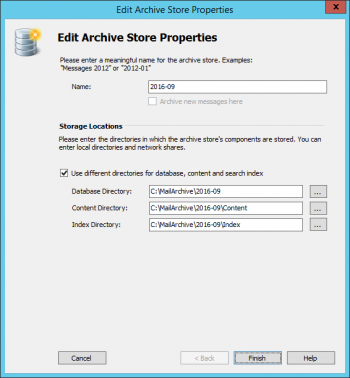
- In the context menu or in the details pane, click on Edit...
- The Edit Archive Store Properties dialog opens.
- Enable the option Use different directories for database, content and search index. The folders of the individual archive store components are shown.
- In the file system, move the folders to their new locations.
- In the dialog, change the base directories to the new folders. If network shares are used, enter the UNC paths of the shares i.e.
\\computer\myshare\folder. - Click on Finish.
- Change the status of the archive store back to the one you've noted in the first step.

Moving the Archive to a Different Hard-Disk
To move a MailStore Server installation, where all archive stores are located underneath the directory of the master database (default: C:\MailArchive), to a different hard-disk, follow the steps below. The MailStore program directory remains unchanged.
- Stop the MailStore Server service through the MailStore Server Service Configuration.
- Move the master database directory (default:
C:\MailArchive) and all subdirectories to the new location. The folder structure must remain unchanged. - Use the MailStore Server Service Configuration to change the directory of the "Master Database" to the new location.
- Start the MailStore Server service again.
Notice: Please be aware that the throughput of an external hard-disk may have a negative impact on the performance of MailStore Server.
Please note: Archive stores that are not stored in a relative path to the master database may have to be re-attached or their paths edited after moving the archive. Details about managing archive stores are available in chapter Storage Locations of the MailStore Server manual.
Moving the Archive to a New Machine
- To move your MailStore archive to a new machine, you need your license key (Product-Key) and the computer name (Machine-Name) of the computer on which MailStore Server was previously installed. You can find both in the MailStore Client in the Administrative Tools under Miscellaneous > License Management.
- Only migrations to the same or newer versions are supported.
- If you want to update to MailStore 25.1 or newer, read Update Notices for MailStore Server and the Update Notices for MailStore Server to version 25.1 or newer
To move a MailStore Server archive, including all users, settings and emails, to a new machine, follow these steps:
- Create a backup of the archive.
- Stop the MailStore Server service on the current machine through the MailStore Server Service Configuration.
- Move the master database directory (default:
C:\MailArchive), all of its subdirectories and all archive stores that exist on the current machine to the new machine. The folder structure must remain unchanged. - Uninstall MailStore Server on the current machine.
- Transfer your MailStore Server license to the new machine through our license portal.
- Install MailStore Server on the new machine. You can install the latest version. Please note the update notes and the Update Notices for MailStore Server to version 25.1 or newer.
- If the location of the master database directory to use does not match the default path
C:\MailArchive, run the MailStore Server Service Configuration, stop the MailStore Server service and change the directory of the "Master Database" to the new location. - If you have any client-sided scheduled tasks and are using your own SSL certificate, export the SSL certificate and private key (usually packaged in a PKCS#12 file) which is used by MailStore Server from the machines certificate store and import it to the same location on the new machine. Refer to the Windows help for further information about managing SSL certificates.
- In case the new installation is using the same product key than the old installation and the product key is used as recovery key, nothing has to be done in regards to archive security. In case a different product key is used on the new machine or the archive was secured with a generated random value the archive must be reinitialized before the first start.
- Start the MailStore Server service on the new machine if it's not running.
Please note: Archive stores that are not stored in a relative path to the master database may have to be re-attached or their paths edited after moving the archive. Details about managing archive stores are available in chapter Storage Locations of the MailStore Server manual.
To move a MailStore Server archive, including all users, settings and emails, to a network share, follow the instructions below. The information from the article Using Network Attached Storage (NAS) are also applicable. The MailStore program directory remains unchanged.
- Stop the MailStore Server service through the MailStore Server Service Configuration.
- Create a new share on the NAS-system.
- Either grant the MailStore Server machine account or a user read-/write-permissions on that newly created share.
- If you granted the permissions to a user object, configure MailStore Server as described in Using Network Attached Storage (NAS).
- Move all files from the original archive folder to the network share.
- Use the MailStore Server Service Configuration to set the path to the MailStore Server Master-Database to the UNC path of the share, i.e.
\\computer\myshare. - Start the MailStore Server service again.
Please note: Archive stores that are not stored in a relative path to the master database may have to be re-attached or their paths edited after moving the archive. Details about managing archive stores are available in chapter Storage Locations of the MailStore Server manual.
Moving an Archive Store to a Different Installation
To move an archive store to a different installation, follow the instructions below. The product key or the recovery key of the installation where the archive store is coming from is required.
Please note: The archive store must be on version 7 or higher, so that it can move to a different archive. If that is not the case, the archive store and the associated Master Database have to be loaded once with MailStore Server 7 or higher, because then some necessary database upgrades will be performed.
- Only migrations to installations of the same or a newer version are supported.
- If you want to move the archive store from a version prior to 25.1 to an installation of MailStore 25.1 or newer, all archive store databases must have been updated to Firebird 4. Please read the Update Notices for MailStore Server to version 25.1 or newer.
- Start the MailStore Client and log in as a MailStore user with administrative privileges on the installation where the archive store is still attached to.
- Navigate to Administrative Tools > Storage > Storage Locations.
- Detach the archive store you want to move.
- Move the folder or folders of the archive store to the new location.
- Start the MailStore Client and log in as a MailStore user with administrative privileges on the installation where the archive store will be attached to.
- Navigate to Administrative Tools > Storage > Storage Locations.
- Attach the moved archive store.
Moving the Content of an Archive Store to a different Archive Store
Under certain circumstances it may be required that messages from one or more archive stores need to be copied to another archive store. E.g. the content of external Microsoft-SQL or PostgreSQL based archive stores needs to be transferred or when lots of small archive stores should be merged into one or more larger ones. When the copy process has finished, the source archive stores can usually be detached, because the content is available through the target store.
There are some requirements before the process can be started:
- Although the process is designed so it can be run while archiving processes are running and users are accessing their archives we recommend to start MailStore Server in Safe Mode.
- The debug log has to be turned on in the MailStore Server Service Configuration.
- The status of all the source archive stores need to be set to Write-Protected so these are not modified while the process is running. Source archive stores also cannot be in an error state.
- The resulting archive store size cannot exceed 30,000,000 messages. When the target store is selected automatically, new stores are created on demand. The settings to automatically create new stores when the size limit is reached is heeded. When the target store is selected manually, the process will not start when the sum of all messages of this store would exceed 30,000,000 messages.
- The target store should be an internal archive store, since support for external archive stores is deprecated and will be removed in a future version.
Important notice: Depending on the amount of mail to be copied the process will take some time. While the process is running, ensure that external backup tools are not accessing MailStore data, the server is not restarted, network shares are accessible, databases are reachable, etc.
To transfer messages, the TransferStores command has to be executed in the MailStore Server Management Shell.
The management shell can be started directly from MailStore: Log on to MailStore Client as administrator and click on Administrative Tools > Management API > Command Prompt.
The syntax of the command is:
TransferStores --sourceStores=<String> [--targetStore=<Number>] [--startIndex=<String>]
| Parameter | Description |
|---|---|
--sourceStores
|
A comma separated list of the IDs of the source archive stores. |
--targetStore
|
Optional. ID of the target archive store. If no value is given the archive store marked as archive here is used. |
--startIndex
|
Optional. In case a previous run of TransferStores has been interrupted, a start index can be given. Messages coming before the start index will be skipped. |
- We recommend to check if the search index configuration needs any changes before starting the process, so that the transferred mails are directly indexed according to your needs.
- Visit the storage locations page, and take note of the IDs of the archive stores whose mails shall be transferred. When desired, create a new internal store. Ensure that the status of the target store is Archive here or Normal. Take note of the ID of that store as well. Ensure that the status of the source stores is Write-Protected.
- Navigate to the Management Shell.
- Execute the TransferStores command and wait for it to finish. See the Examples section below. This client session cannot be used for anything else, it has to wait for the process to finish.
- In case the process aborted, check the debug log for details, it can be found in C:\ProgramData\MailStore\Debug Log. The Management Shell also shows the command, which continues the process where it stopped.
- When the process has finished without any errors, detach the source archive stores using the storage locations page.
- Verify that all mails have been copied.
- Leave Safe Mode by restarting MailStore Server.
- Remove artifacts of source archive store from filesystem, e.g. index files or Content folder, depending on your configuration.
Examples
Use the following command to transfer all messages of archive store with ID 1 to the archive store marked as archive here. When there are already messages in the target store, all messages of archive store 1 will be appended. When the threshold for the maximum amount of mails is reached, a new store is created automatically.
TransferStores --sourceStores=1
Use the following command to transfer all messages of archive stores with IDs 1, 2 and 3 to the archive store marked as archive here. When there are already messages in the target store, all messages of archive stores 1,2 and 3 will be appended. When the threshold for the maximum amount of mails is reached, a new store is created automatically.
TransferStores --sourceStores=1,2,3
The order of the source store IDs is heeded. So the following command will process the source stores in the given order.
TransferStores --sourceStores=3,1,2
Use the following command to transfer all messages of archive store with ID 1 to the archive store with ID 4. When there are already messages in the target store, all messages of archive store 1 will be appended. When a target store is given, a check verifies that the resulting store will not exceed 30,000,000 messages. No new stores will be created automatically:
TransferStores --sourceStores=1 --targetStore=4
Use the following command to transfer messages of archive store with ID 1 and 2 beginning from mails with the internal mail ID 1000 of store 1 to the archive store with ID 4. When there are already messages in the target store, messages of archive stores 1 and 2 will be appended. When a target store is given, a check verifies that the resulting store will not exceed 30,000,000 messages. No new stores will be created automatically:
TransferStores --sourceStores=1,2 --targetStore=4 --startIndex=1:1000